
Welcome to your CMS Guide Tutorial
Thank you for subscribing to FYDesigns, Inc. If you have any concerns or for support kindly send an email at dcantere@fydesigns.ph or send a chat in Viber (0000)
Customer hours: 9 am to 4 pm Mon-Fri
For urgent requests, kindly send us an email at rpambid@fydesigns.ph
Table of Contents
- Logo Change (edit, tutorial)
- Site Title Change (edit, tutorial)
- Page Description
- Created Theme Page
- Home
- Banner (edit, tutorial)
- About us
- Gate Gourmet Group
- Halal Food
- Inflight Catering
- VIP Catering
- Airport Catering
- Home
-
- About Us
- Banner
- Our Mission
- Our Vision
- Our Values
- Key Features
- Location and Features
- Inflight Catering
- Banner
- Food Safety
- Our Food Safety Checks
- Certificates
- VIP Catering
- Banner
- Food Safety
- Our Food Safety Checks
- Certificates
- About Us
-
- Airport Lounge
- Banner
- Food Safety
- Our Food Safety Checks
- Certificates
- Airport Lounge
-
- Careers
- Banners
- Job Posting
- Contact Us
- Banner
- Privacy Policy
- Banner
- Content
- Careers
Frequently Asked Questions
- What Platform is used?
- Is it upgradable and does it require monthly maintenance?
- What if we want to create a new design page?
- Is this entitled for a monthly vulnerability check-up??
- Is it SEO friendly?
- Does it have monthly SEO?
Logo change
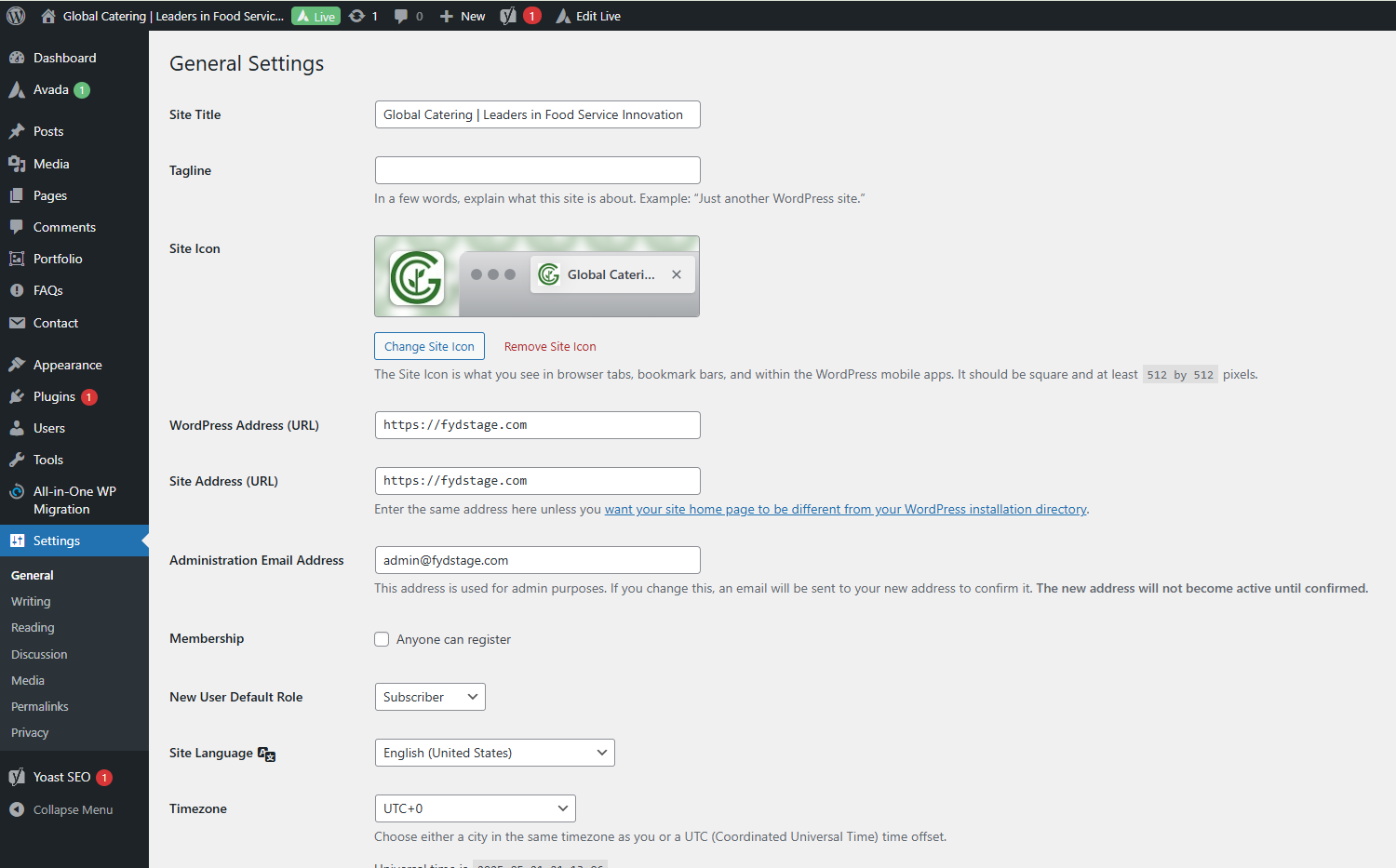
To change the logo, go to Settings and select ‘Site Icon
Site Title Change
To change the logo, go to Settings and select ‘Site Title
Page Description
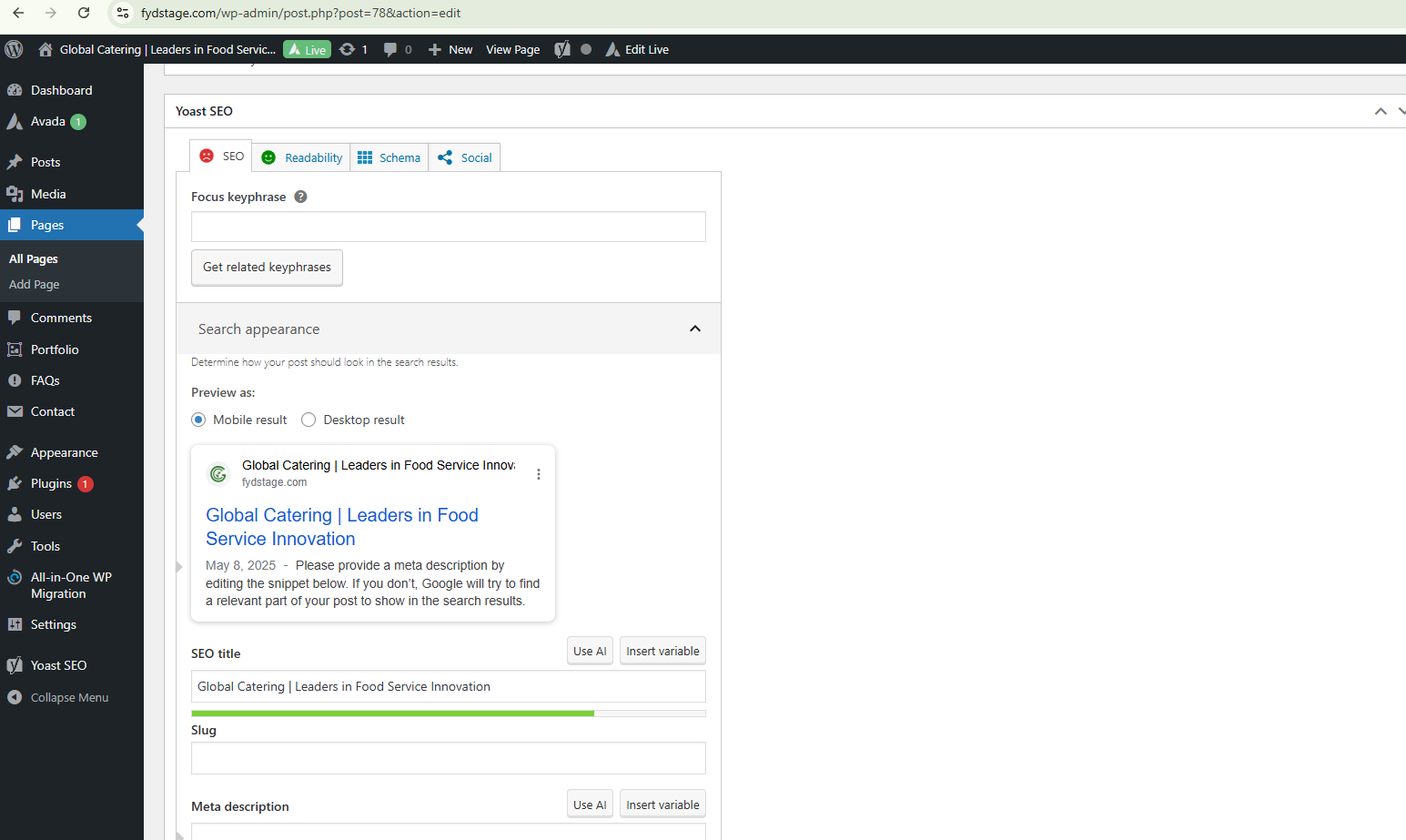
Go to Pages, select ‘Home’, then open the Yoast SEO section. From there, you can add or update the SEO title and meta description.
Home Banner
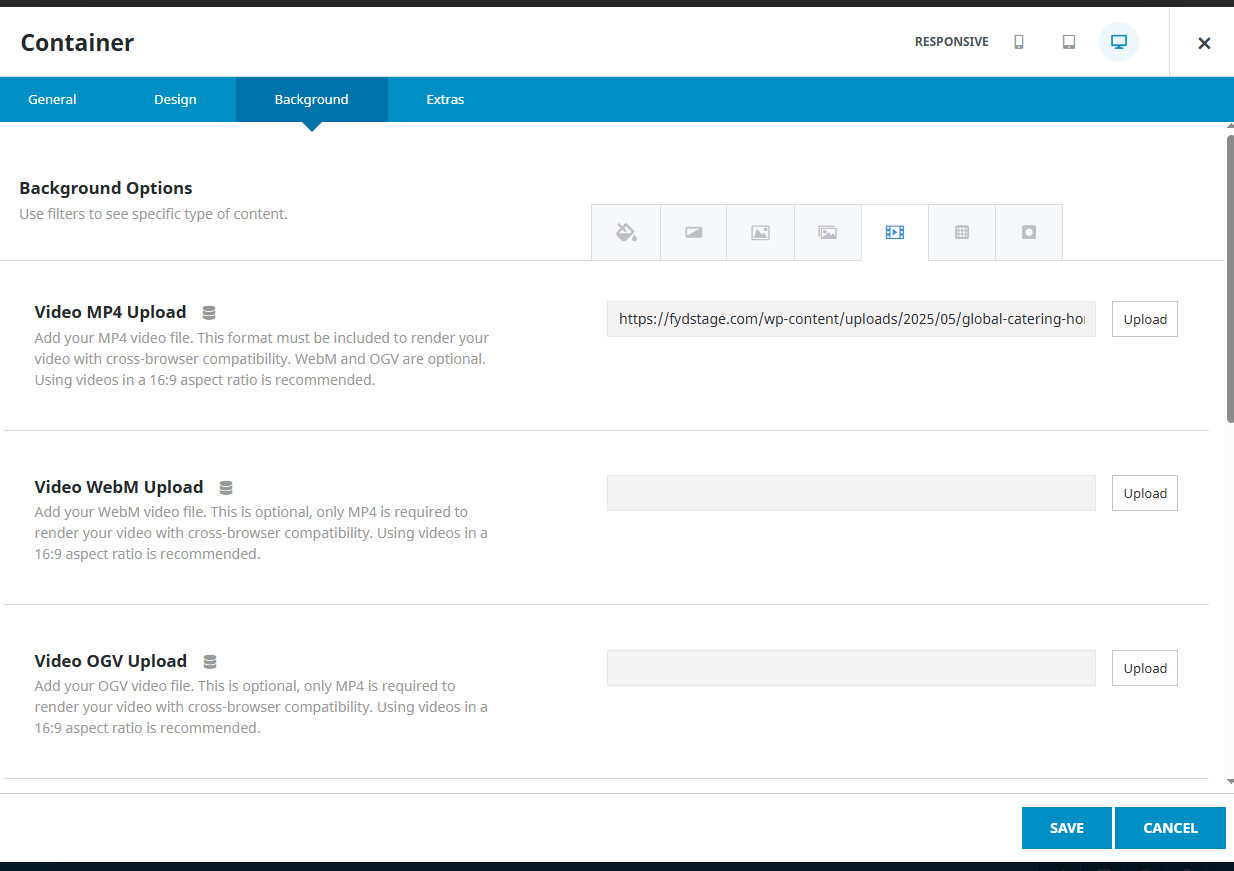
Navigate to Pages > Home > Banner, click the pencil icon to edit, then go to the Background section. Select the video icon and upload the new video.
Home Banner Edit Page
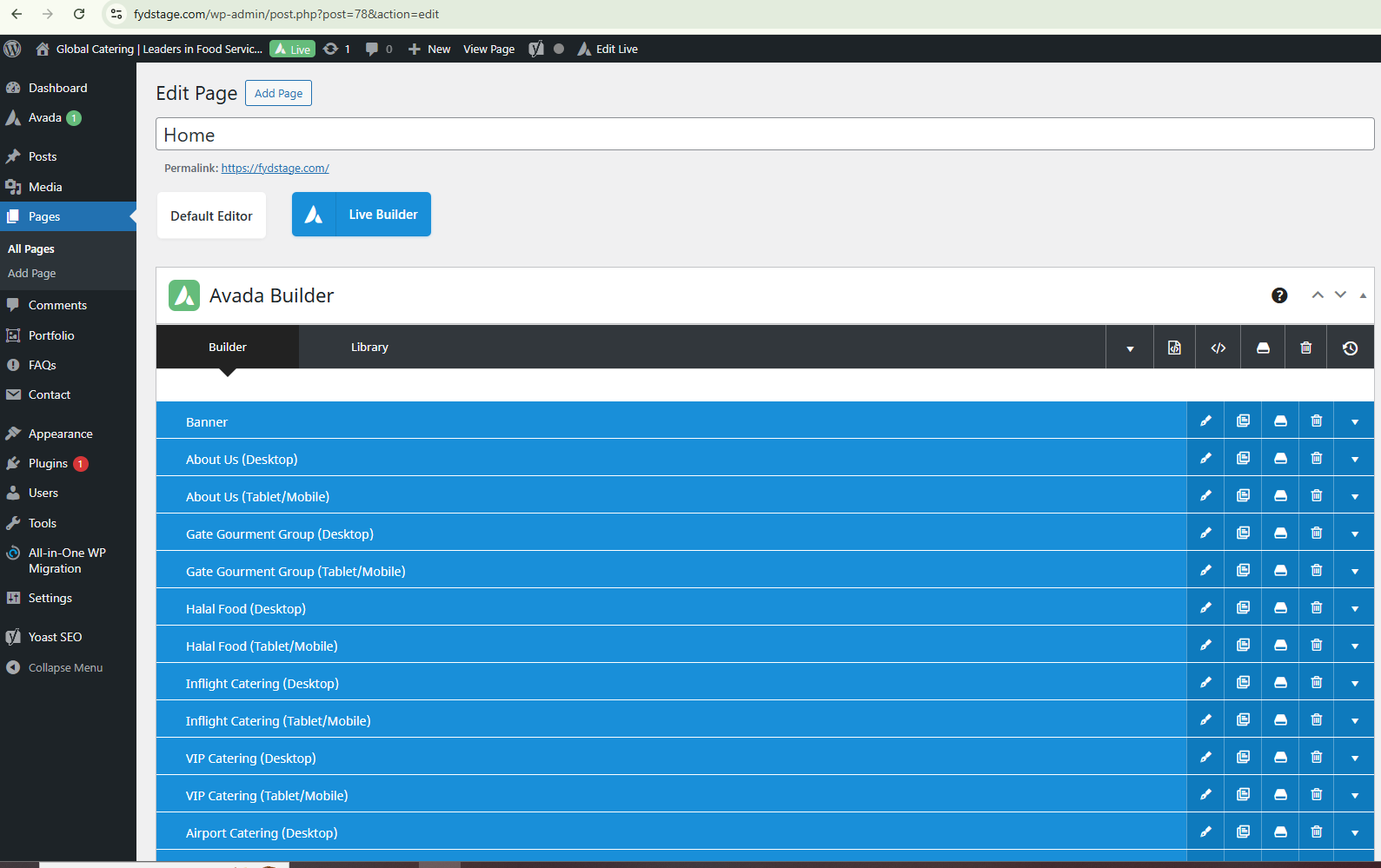
Click the Pencil Icon

Go to Background and change /upload the new video
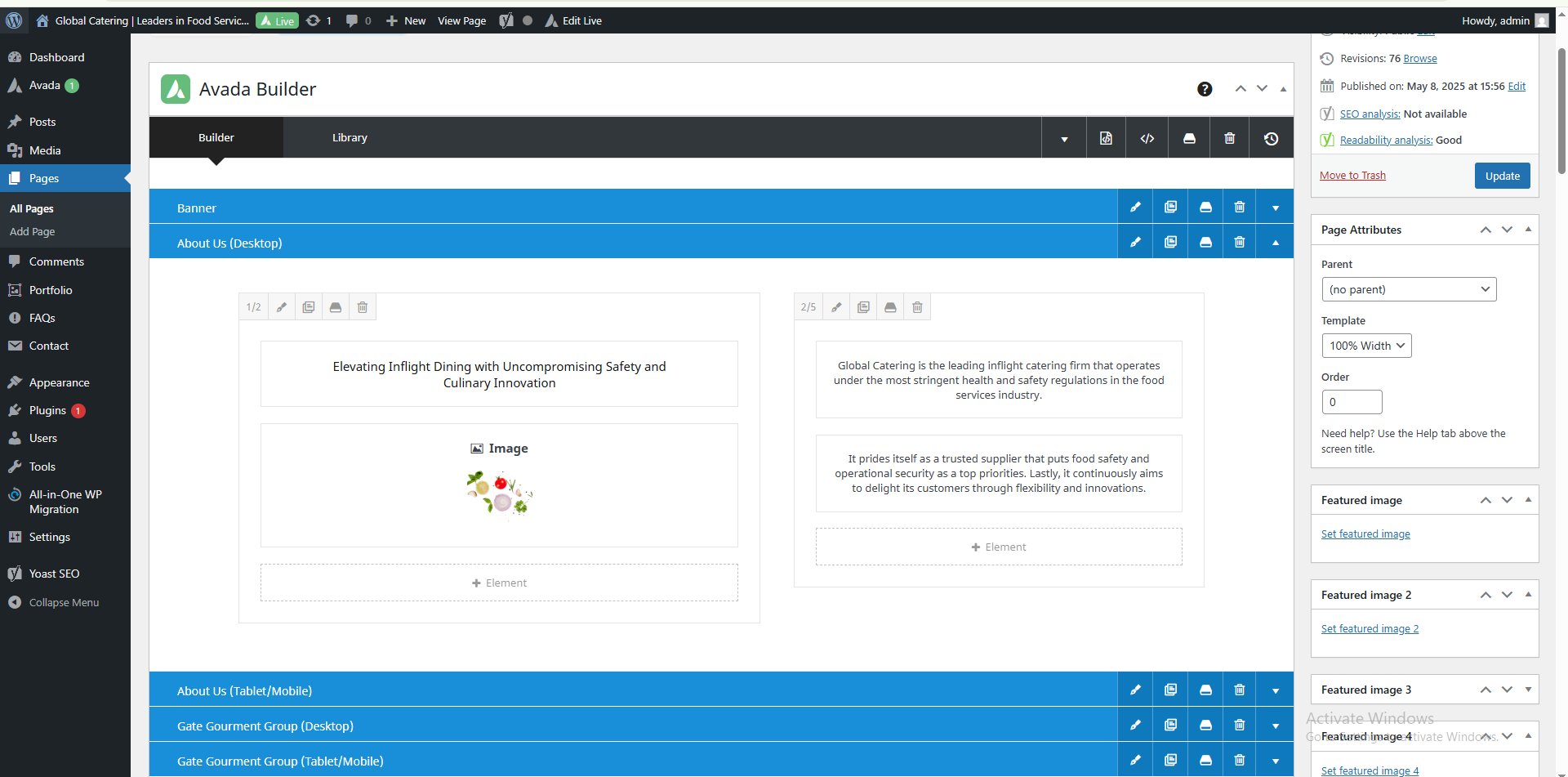
Home – About Us Section
Navigate to Pages > Home > About Us. Click the triangle icon to expand the section. To edit the image or text, select the desired content block and click the pencil icon. After making your changes, click ‘Update’ or ‘Save’ to apply them
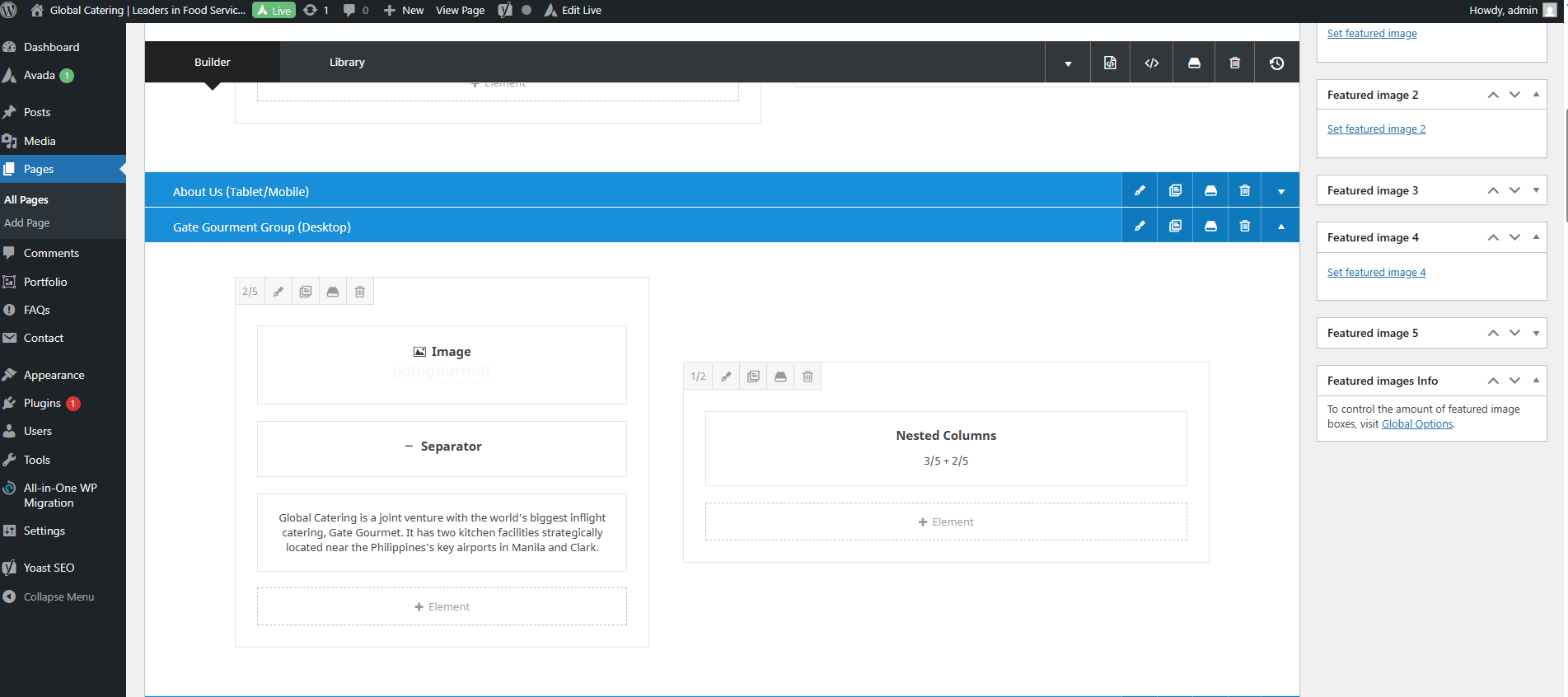
Home – Gate Gourmet
Navigate to Pages > Home > Gate Gourmet, click the triangle icon to edit, then you will see the section to edit the image and text, kindly choose and click the pencil icon to edit. Once edit click update / save
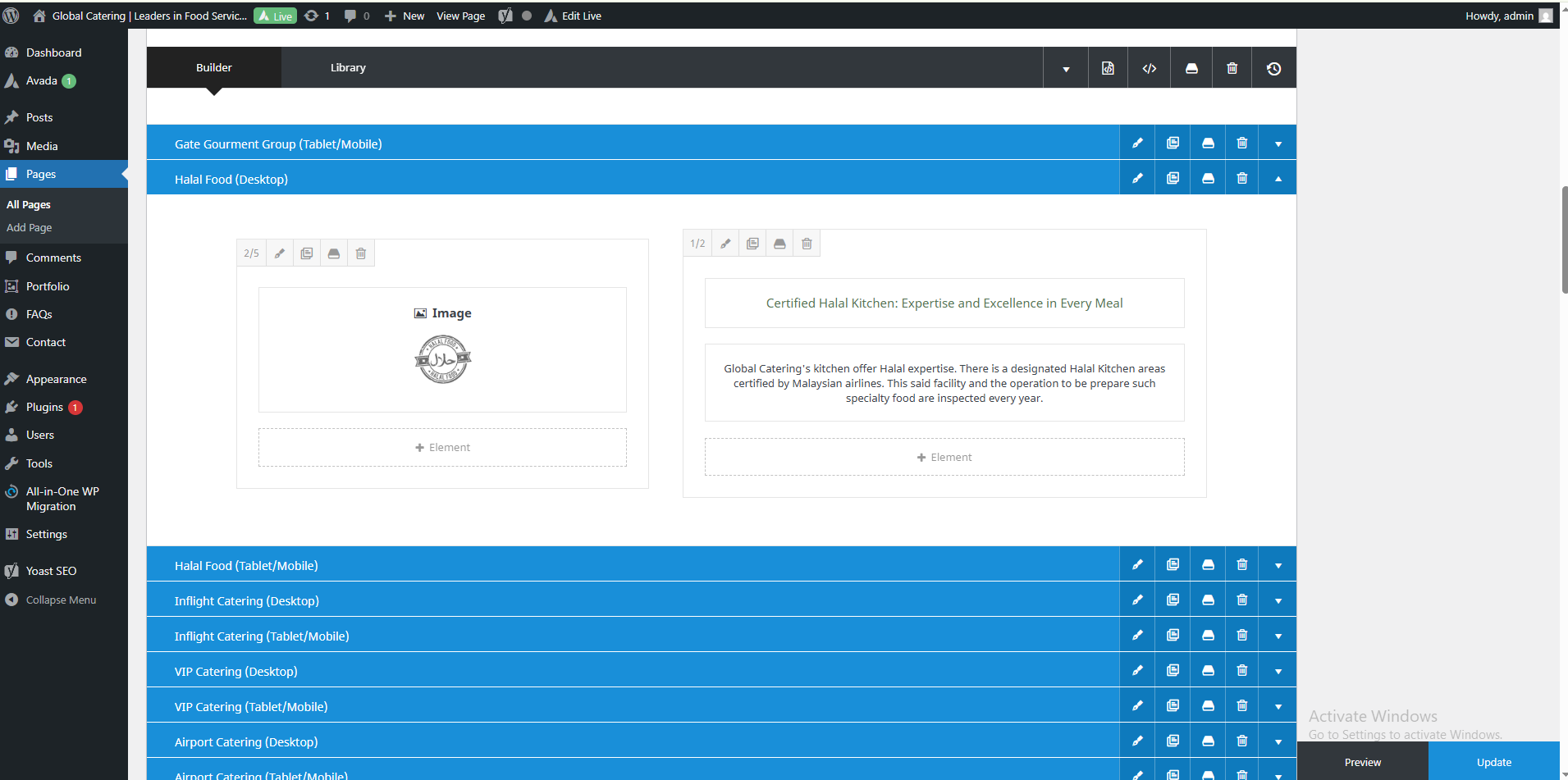
Home – Halal Food
Navigate to Pages > Home > Halal Food, click the triangle icon to edit, then you will see the section to edit the image and text, kindly choose and click the pencil icon to edit. Once edit click update / save
Home -Inflight Catering
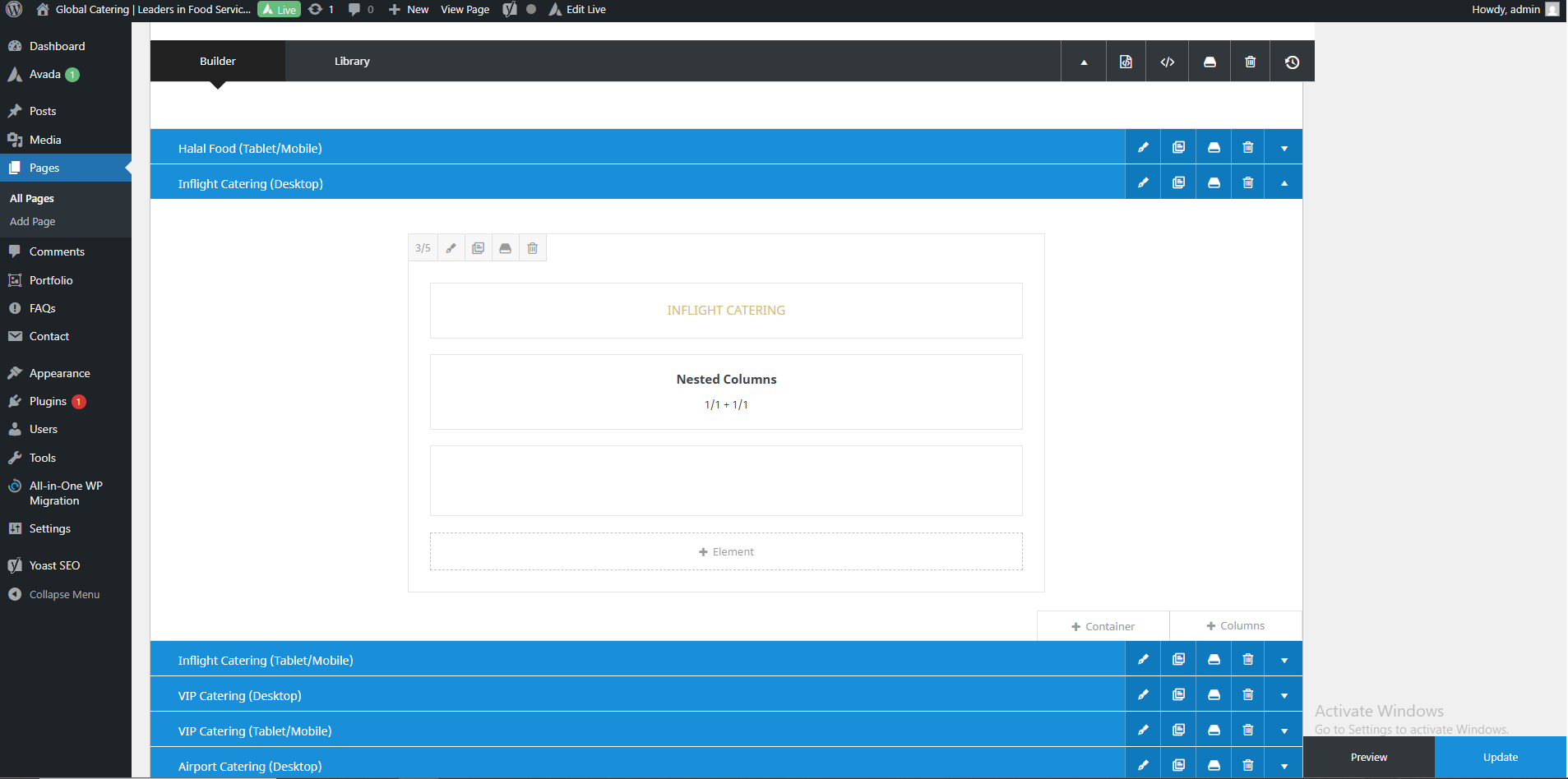
Navigate to Pages > Home > Inflight Catering. Click the triangle icon to expand the section. To edit the title, click on ‘Inflight Catering’. To edit the description, click on ‘Nested Column’. Then, click the pencil icon to make your changes. Once you’re done, click ‘Update’ or ‘Save’ to apply the changes.
Home -VIP Catering
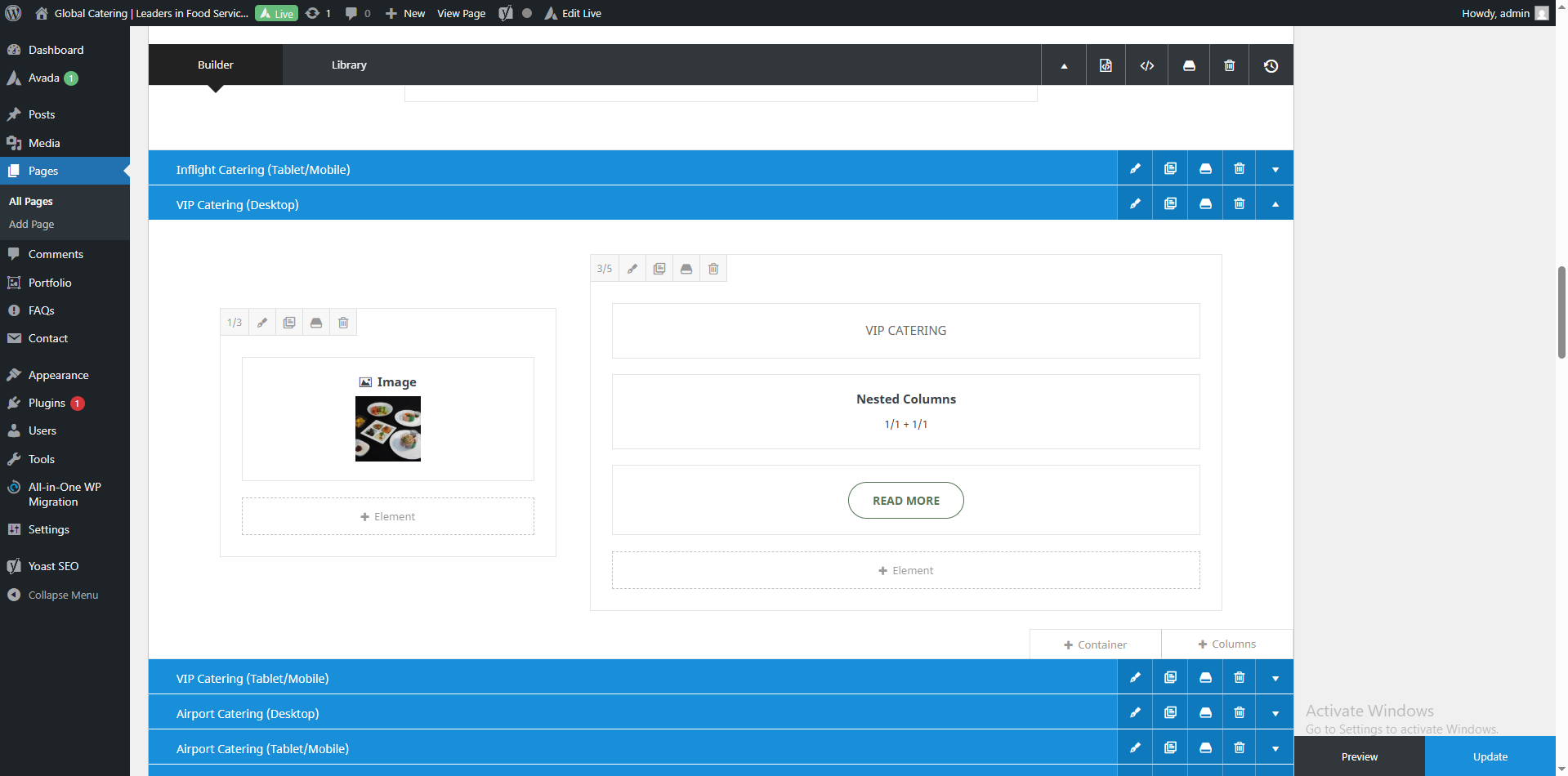
Navigate to Pages > Home > Halal Food, click the triangle icon to edit, then you will see the section to edit the image and text, kindly choose and click the pencil icon to edit. Once edit click update / save.
Home -Airport Catering
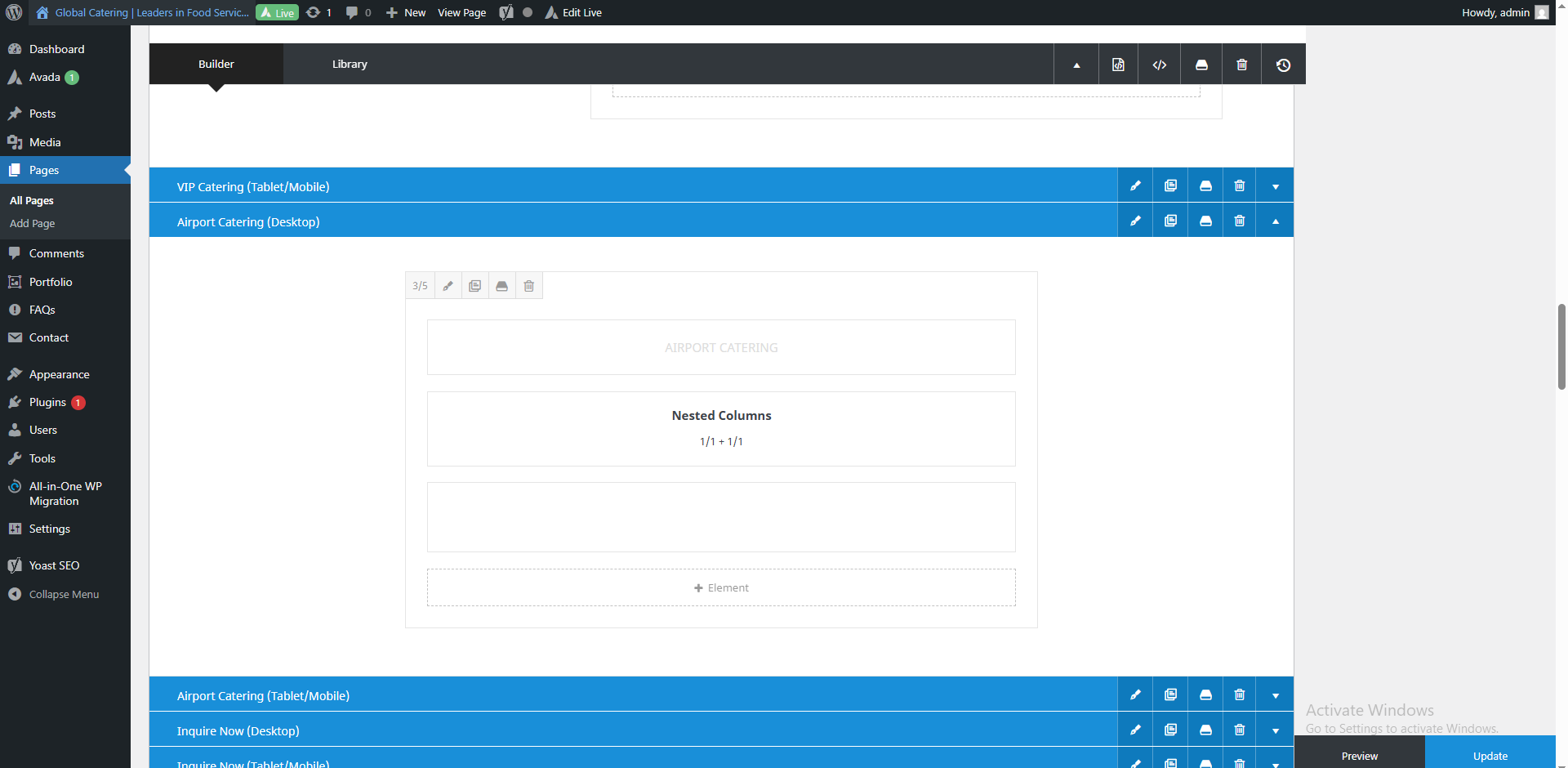
Navigate to Pages > Home > Airport Catering. Click the triangle icon to expand the section. To edit the title, click on ‘Airport Catering’. To edit the description, click on ‘Nested Column’. Then, click the pencil icon to make your changes. Once you’re done, click ‘Update’ or ‘Save’ to apply the changes.
About Us – Banner
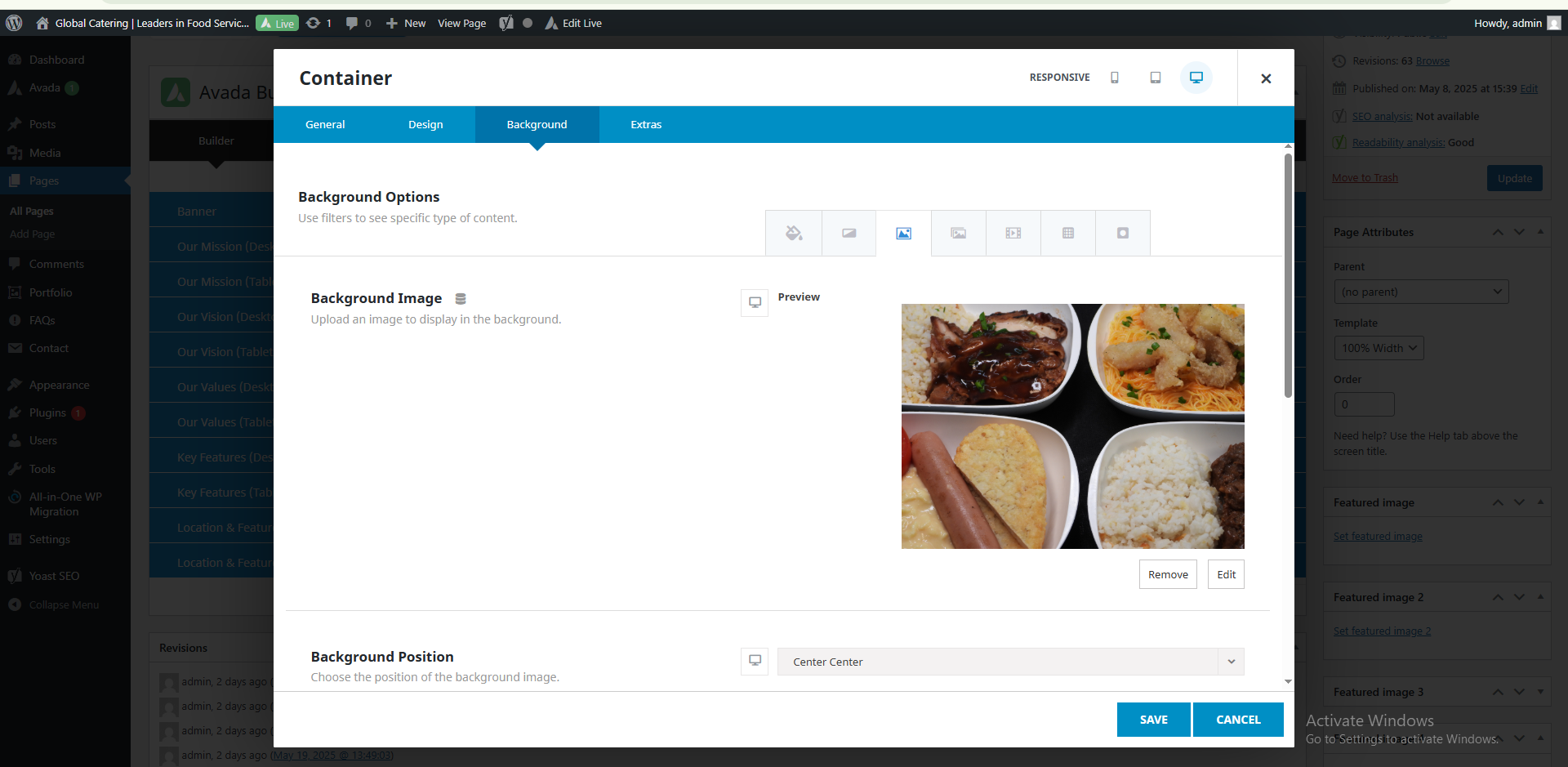
Navigate to Pages > About Us > Banner, click the pencil icon to edit, then go to the Background section. Select the Image icon and upload the new banner image.
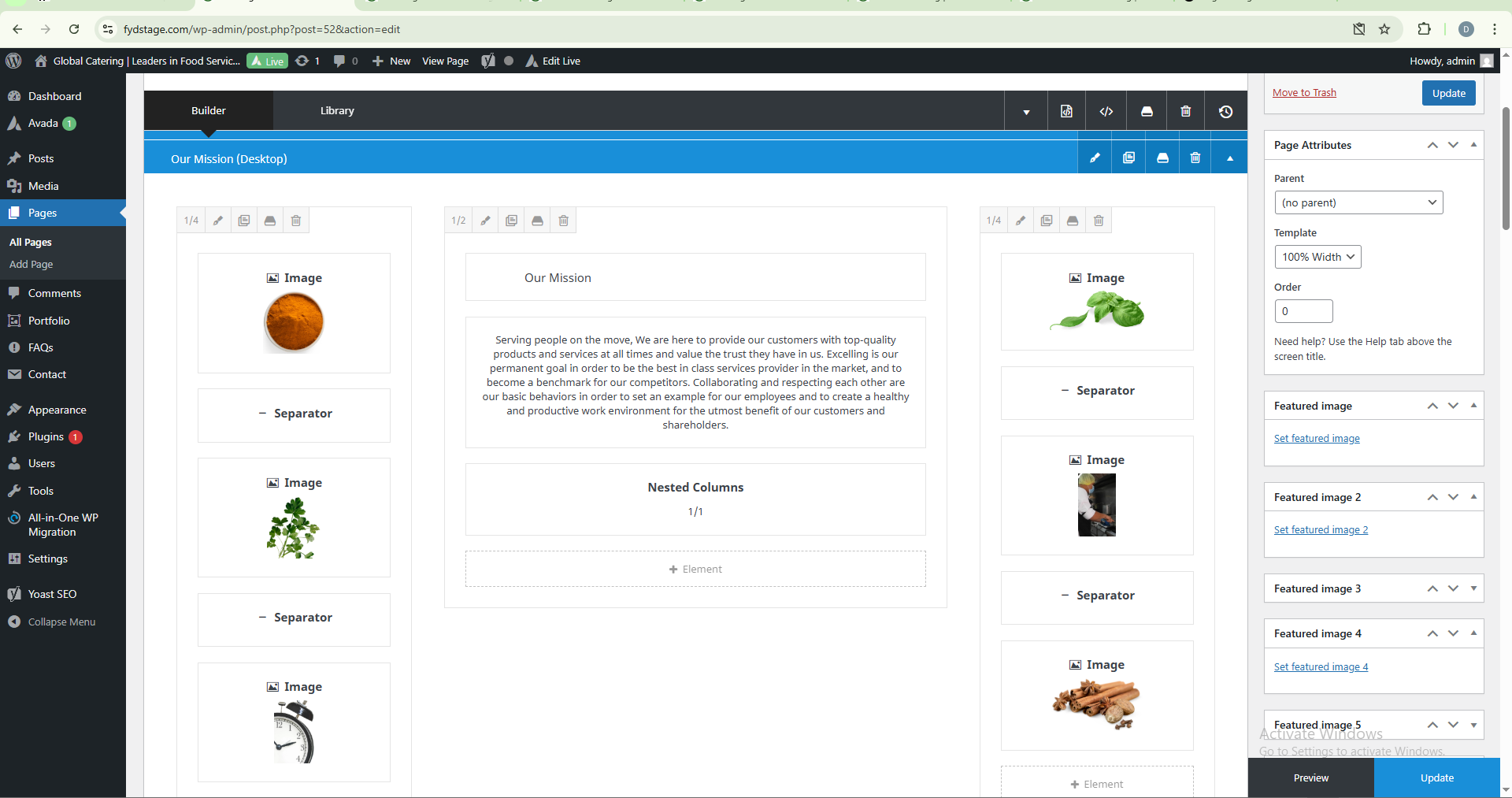
About Us – Mission
Navigate to Pages > About Us > Mission. Click the triangle icon to expand the section. To edit the image or text, select the desired content block and click the pencil icon. After making your changes, click ‘Update’ or ‘Save’ to apply them
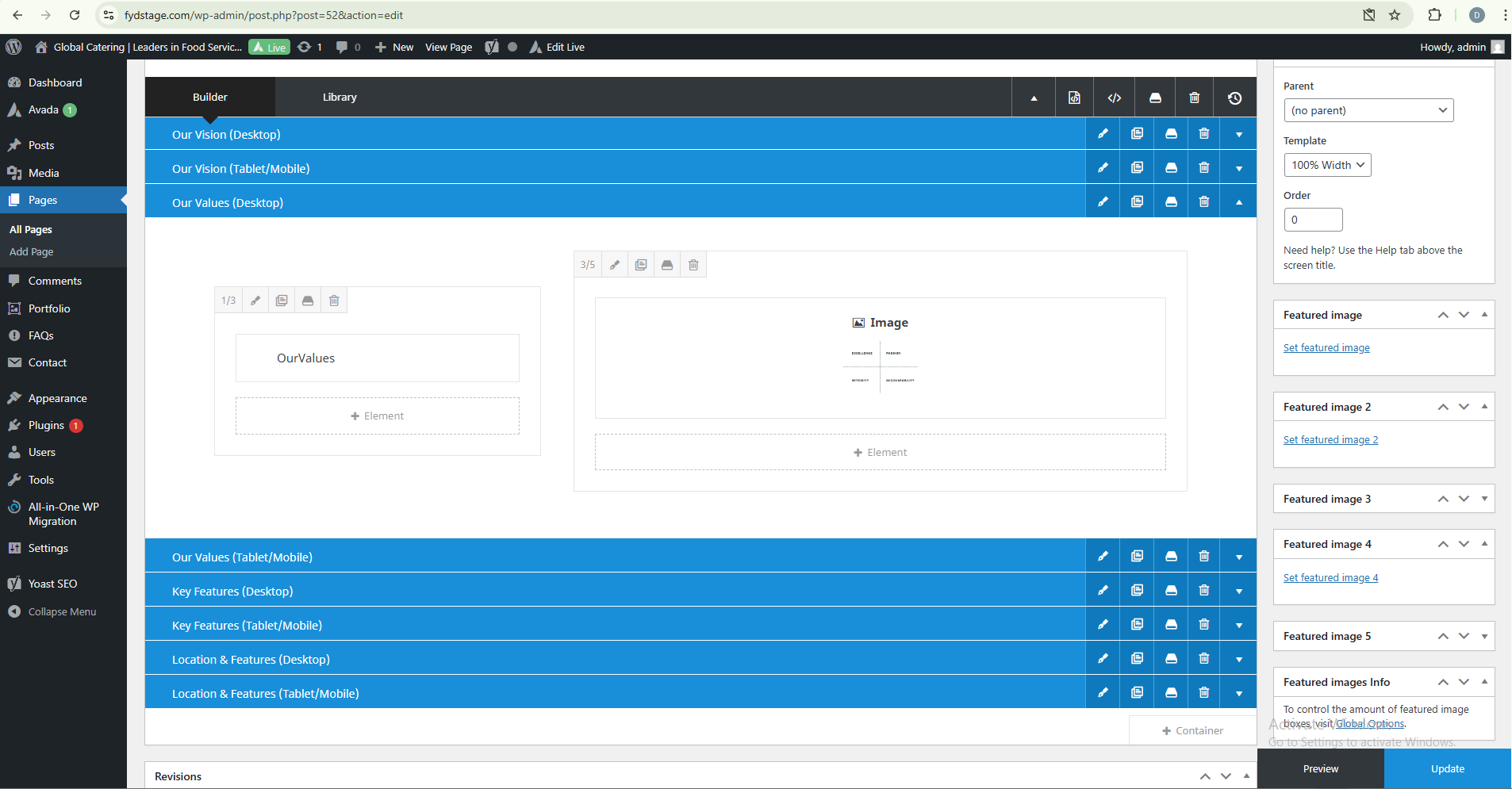
About Us – Values
Navigate to Pages > About Us > Our Values. Click the triangle icon to expand the section. To edit the image or text, select the desired content block and click the pencil icon. After making your changes, click ‘Update’ or ‘Save’ to apply them
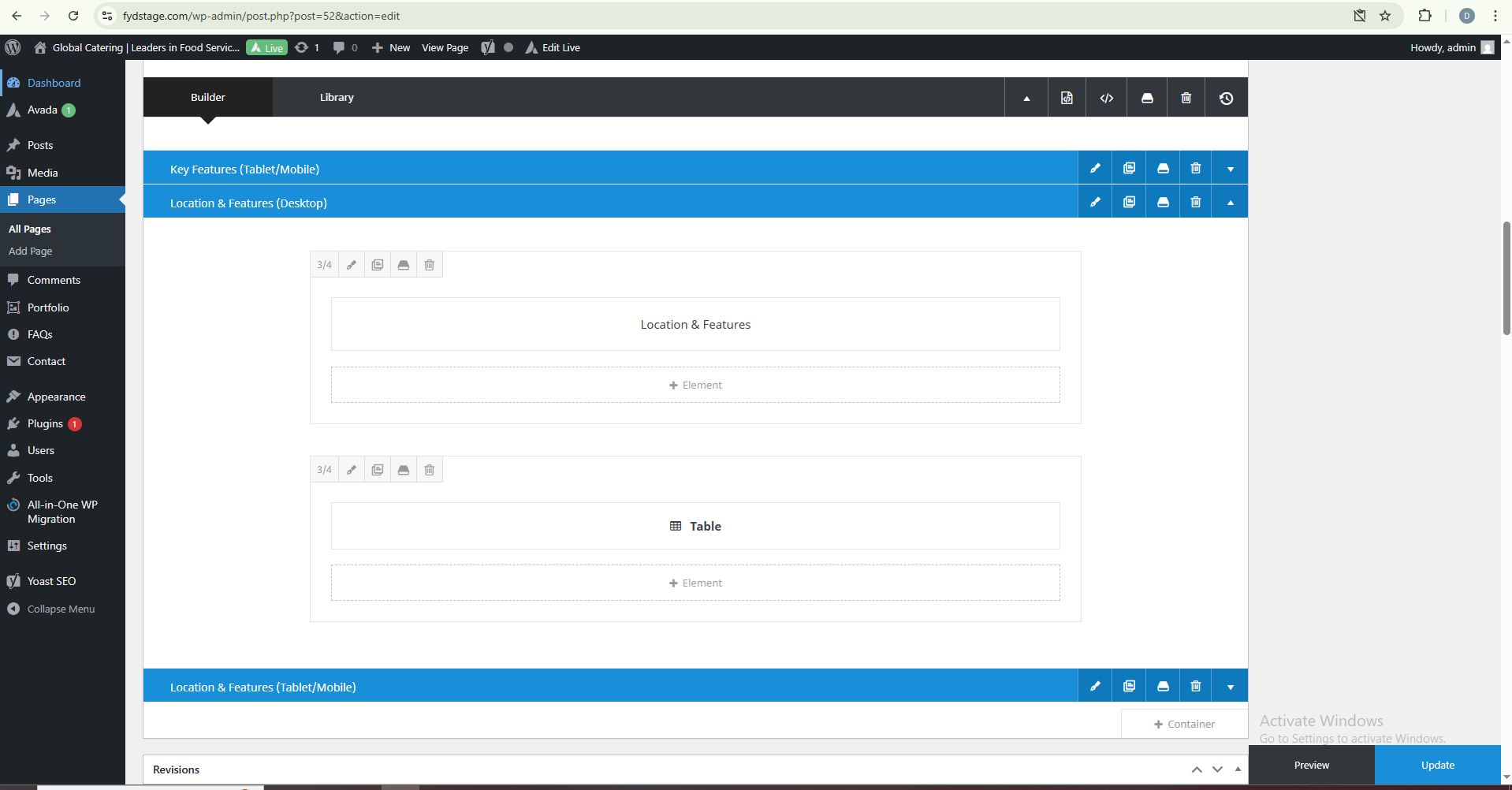
About Us – Key Features
Navigate to Pages > About Us > Location and Features. Click the triangle icon to expand the section. To edit the image or text, select the desired content block and click the pencil icon. After making your changes, click ‘Update’ or ‘Save’ to apply them
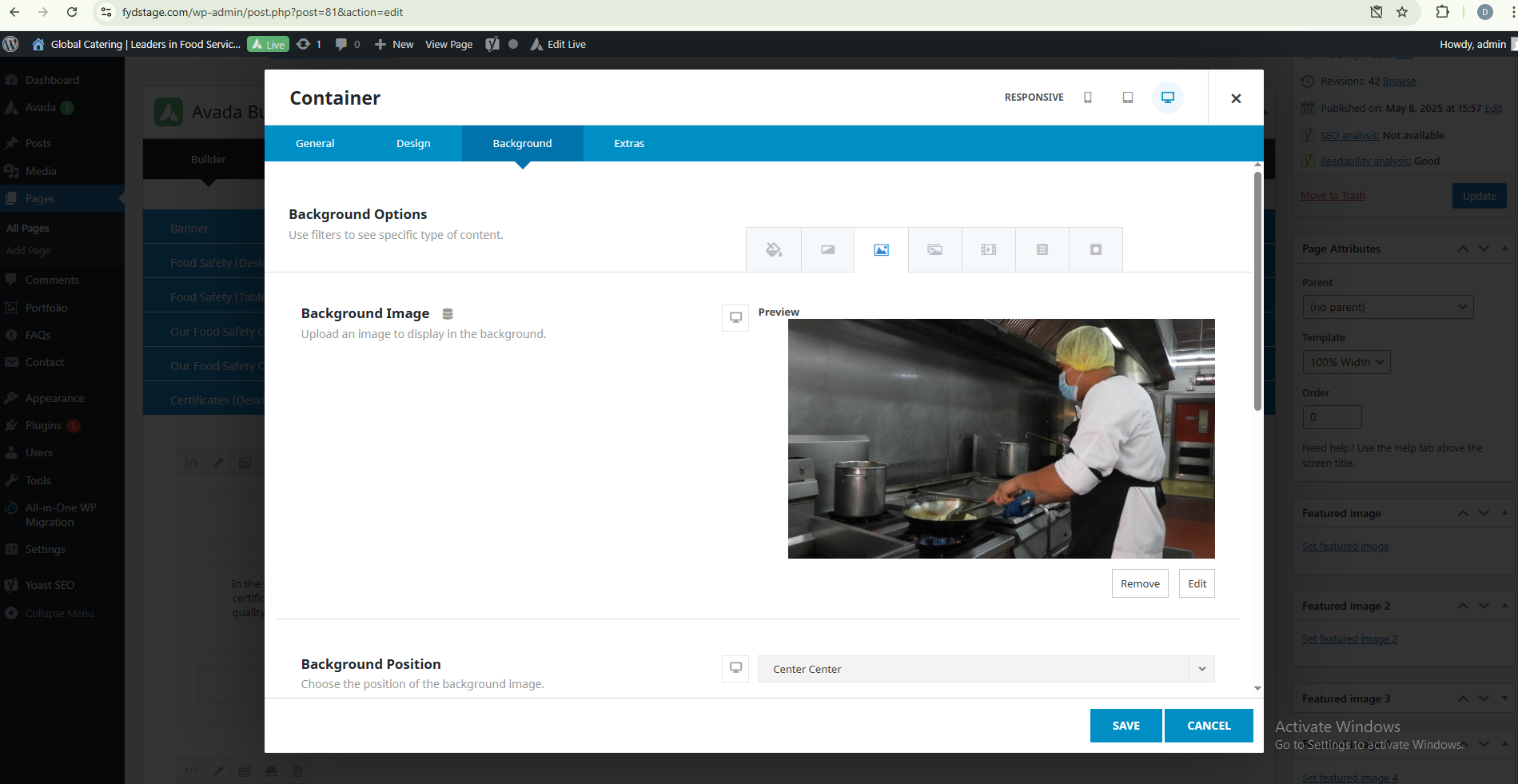
Inflight Catering – Banners
Navigate to Pages > Inflight Catering > Banner, click the pencil icon to edit, then go to the Background section. Select the image icon and upload the new image banner.
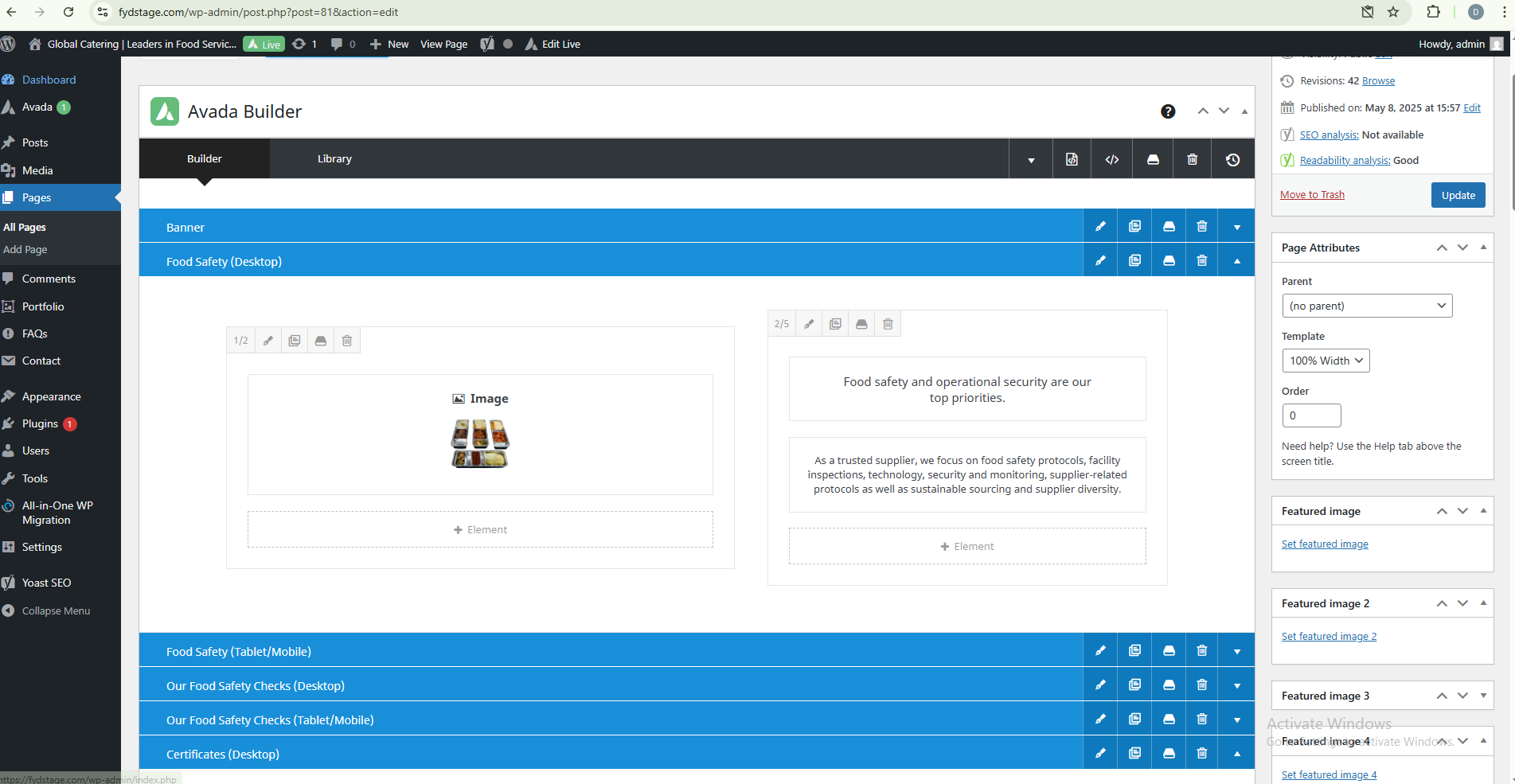
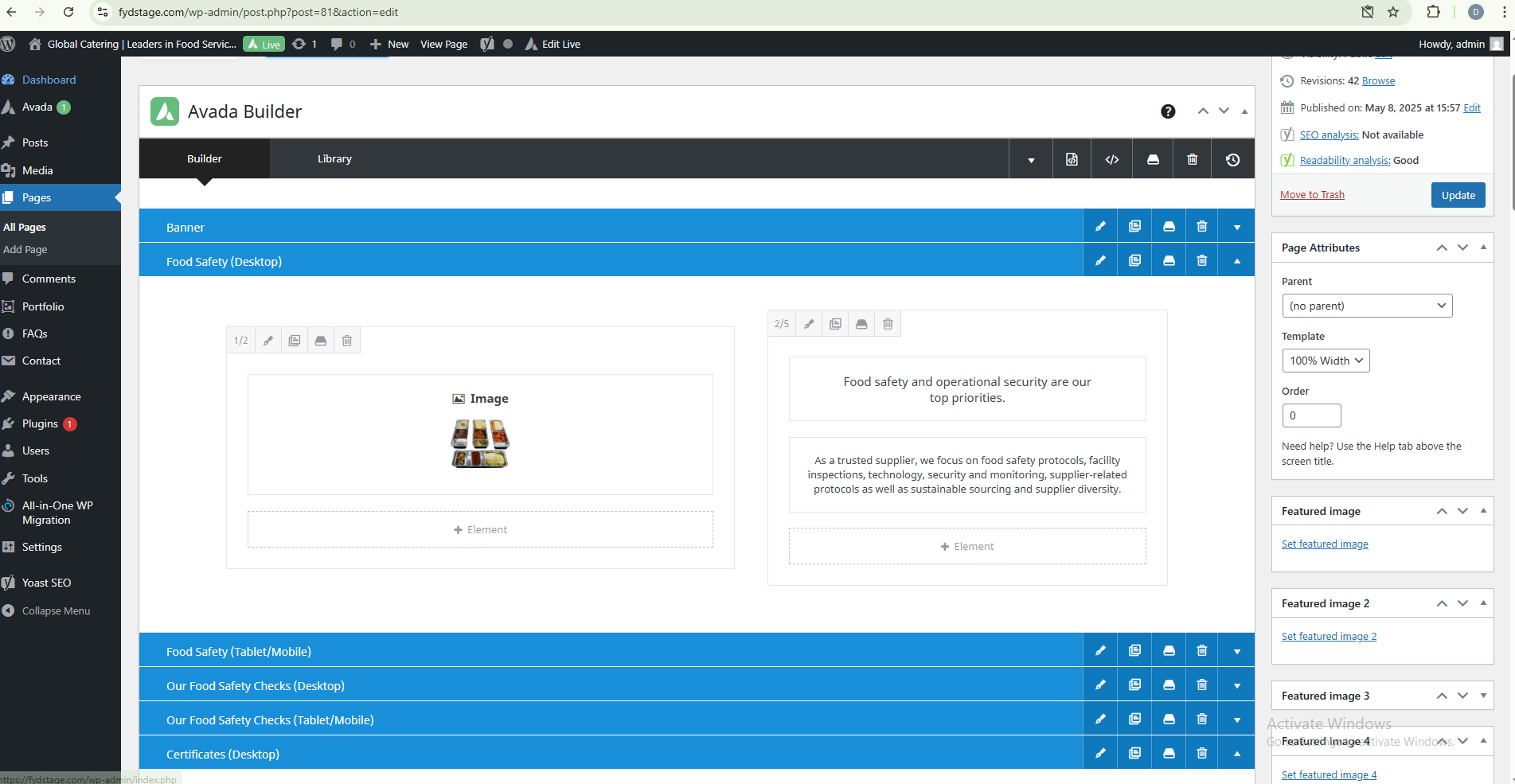
Inflight Catering – Food Safety
Navigate to Pages > Inflight Catering > Food Safety. Click the triangle icon to expand the section. To edit the image or text, select the desired content block and click the pencil icon. After making your changes, click ‘Update’ or ‘Save’ to apply them
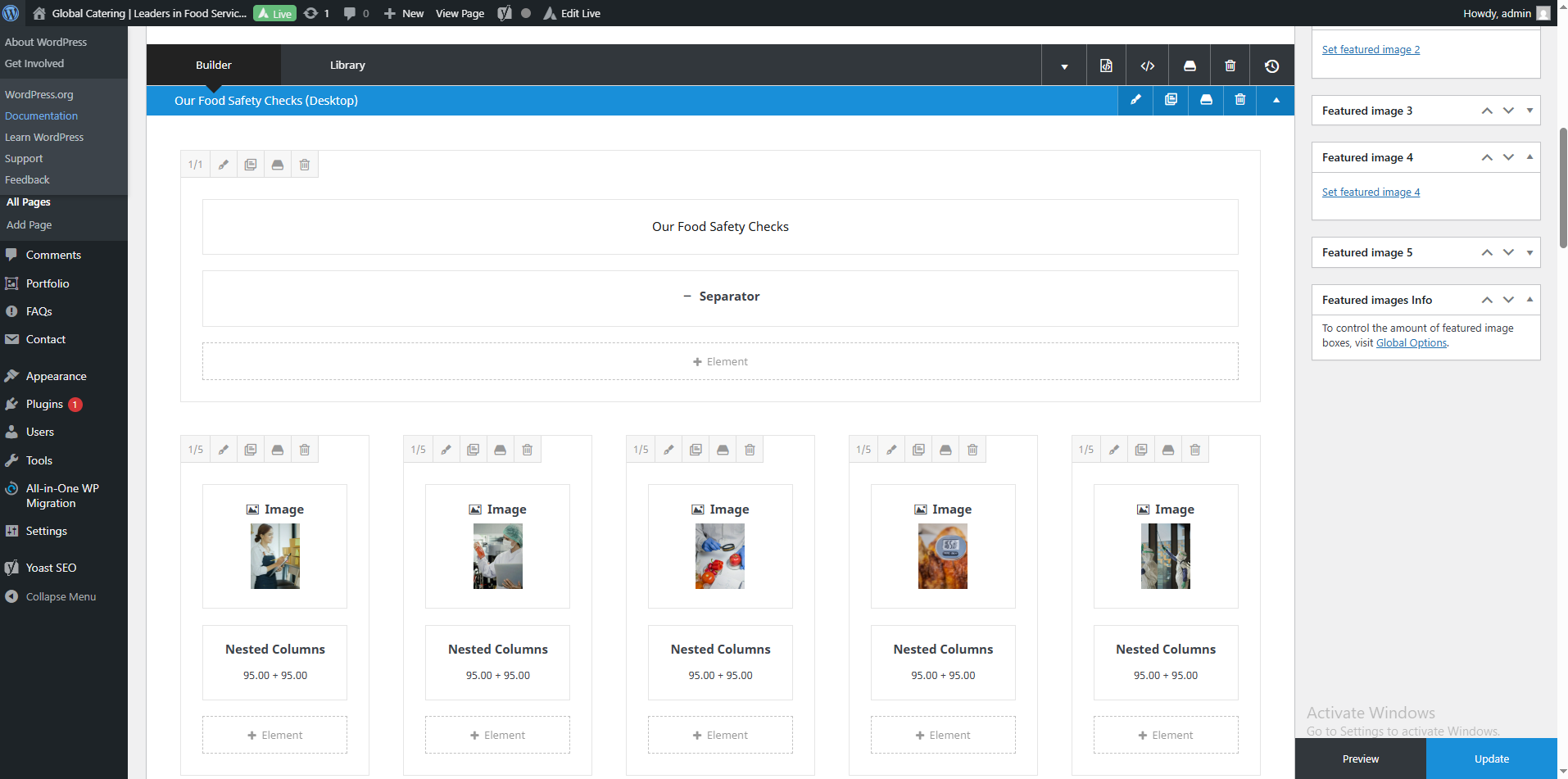
Inflight Catering – Food Safety Checks
Navigate to Pages > Inflight Catering > Food Safety. Click the triangle icon to expand the section. To edit the image or text, select the desired content block and click the pencil icon. After making your changes, click ‘Update’ or ‘Save’ to apply them
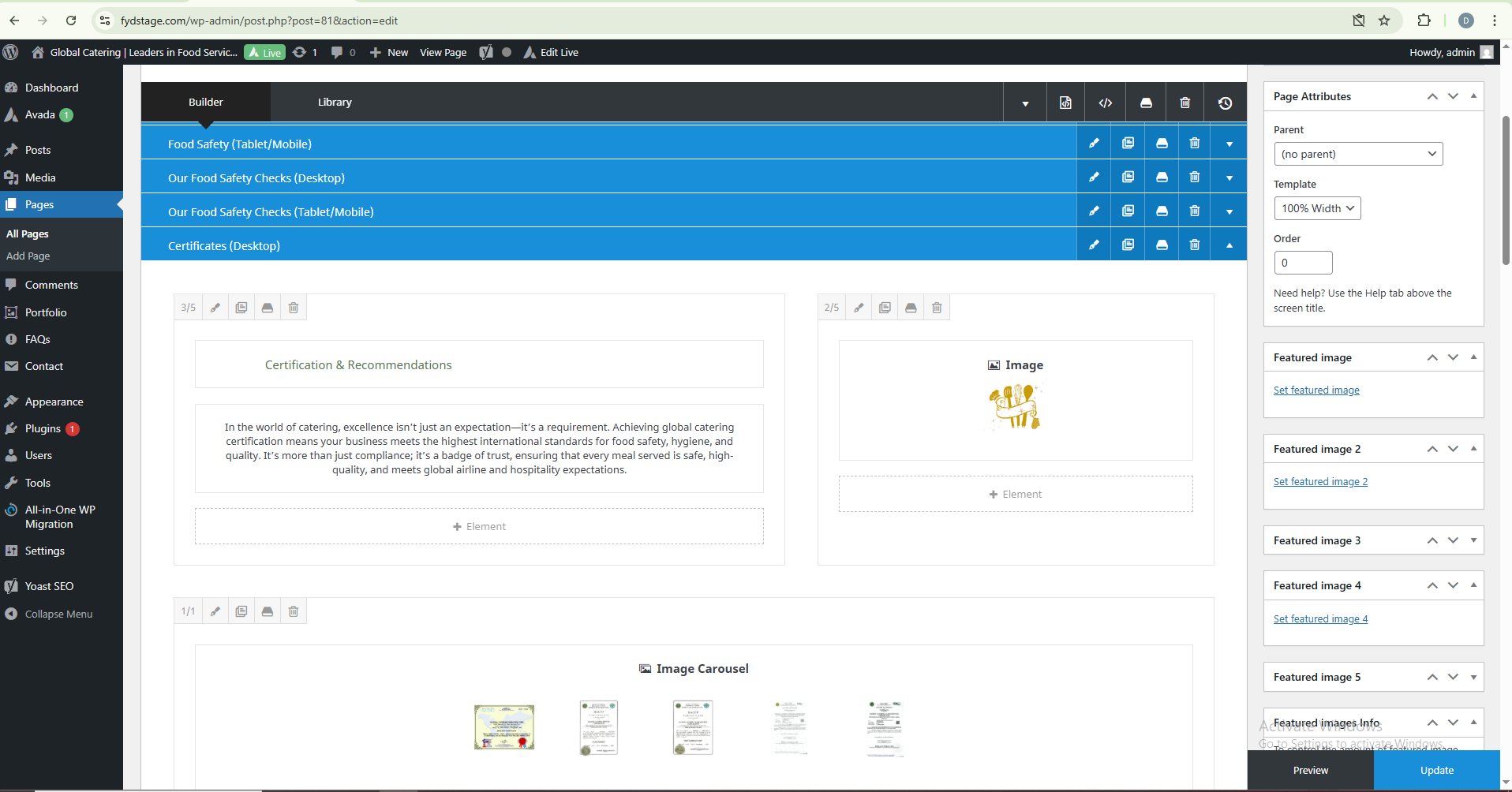
Inflight Catering – Certificates
Navigate to Pages > Inflight Catering > Certificates. Click the triangle icon to expand the section. To edit the image or text, select the desired content block and click the pencil icon. After making your changes, click ‘Update’ or ‘Save’ to apply them
VIP Catering – Banners
Navigate to Pages > VIP Catering > Banner, click the pencil icon to edit, then go to the Background section. Select the image icon and upload the new image banner.
VIP Catering – Food Safety
Navigate to Pages > VIP Catering > Food Safety. Click the triangle icon to expand the section. To edit the image or text, select the desired content block and click the pencil icon. After making your changes, click ‘Update’ or ‘Save’ to apply them
VIP Catering – Certificates
Navigate to Pages > VIP Catering > Certificates. Click the triangle icon to expand the section. To edit the image or text, select the desired content block and click the pencil icon. After making your changes, click ‘Update’ or ‘Save’ to apply them
Airport Lounge – Banners
Navigate to Pages >Airport Lounge > Banner, click the pencil icon to edit, then go to the Background section. Select the image icon and upload the new image banner.
Airport Lounge – Food Safety
Navigate to Pages > Airport Lounge > Food Safety. Click the triangle icon to expand the section. To edit the image or text, select the desired content block and click the pencil icon. After making your changes, click ‘Update’ or ‘Save’ to apply them
Airport Lounge – Certificates
Navigate to Pages > Aiport Lounge > Certificates. Click the triangle icon to expand the section. To edit the image or text, select the desired content block and click the pencil icon. After making your changes, click ‘Update’ or ‘Save’ to apply them
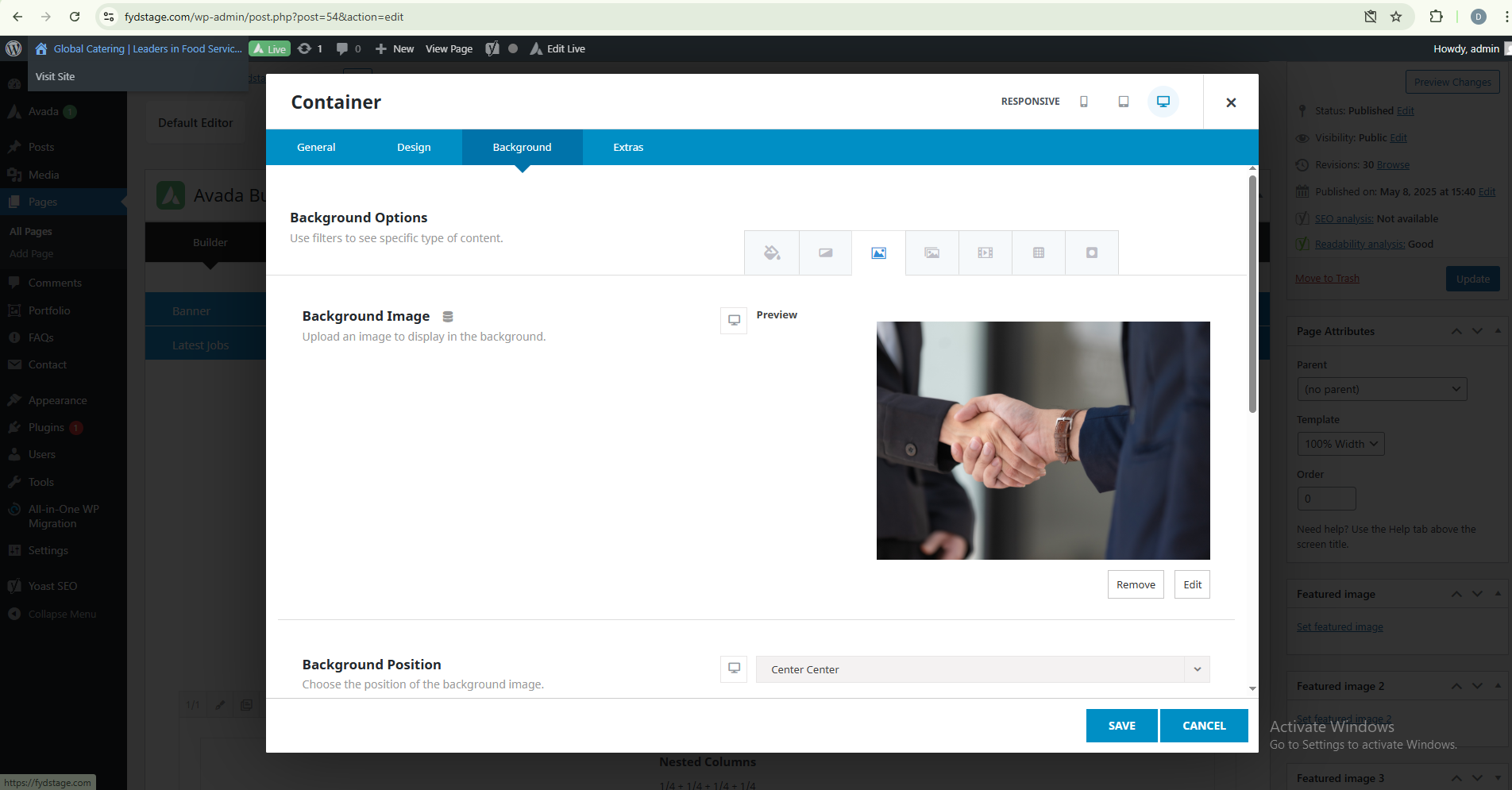
Career Banner
Go to Pages < Careers < Banner click the Pencil Icon then go to Background select the image icon then upload the new banner
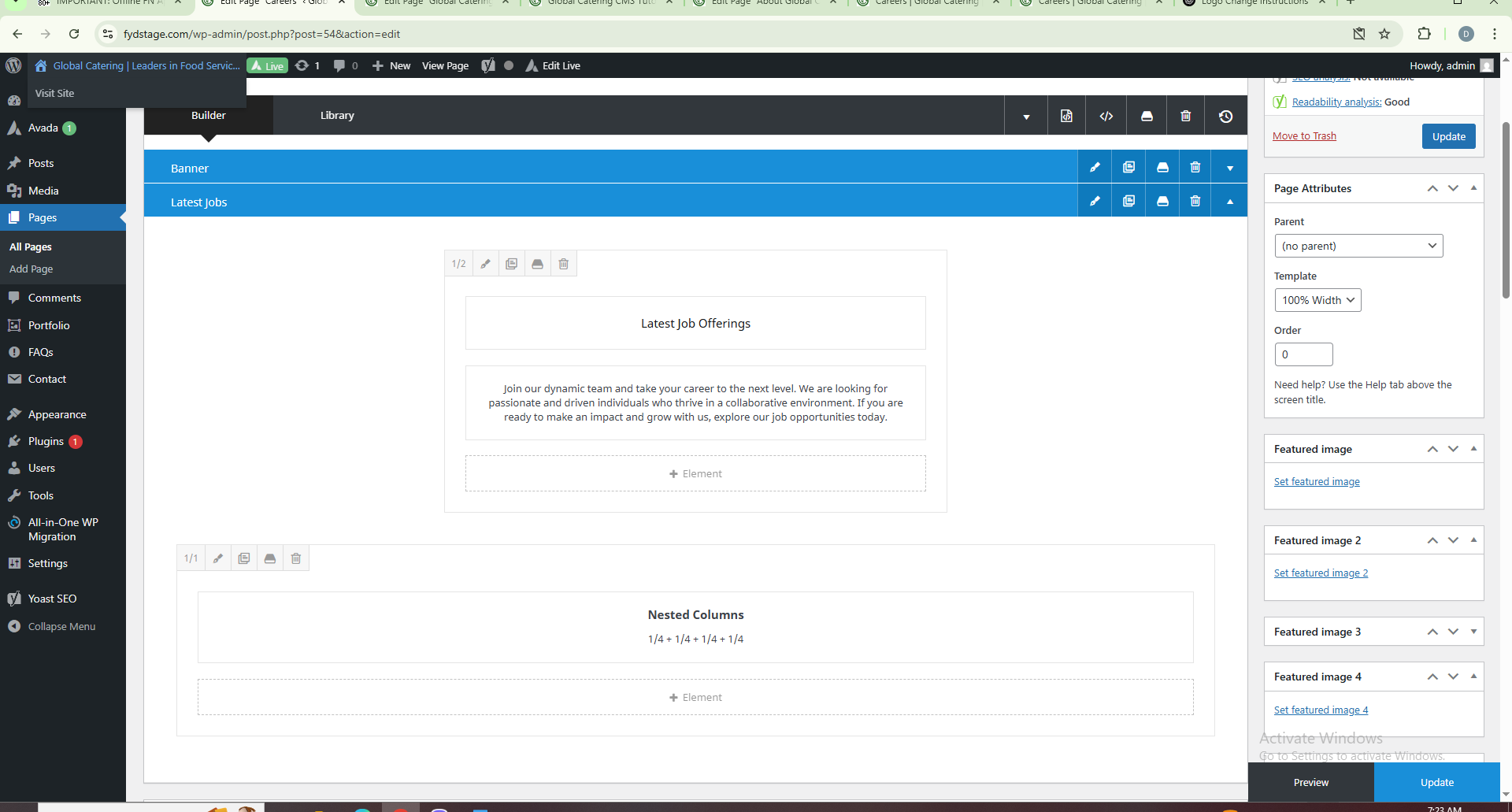
Career Job Posting
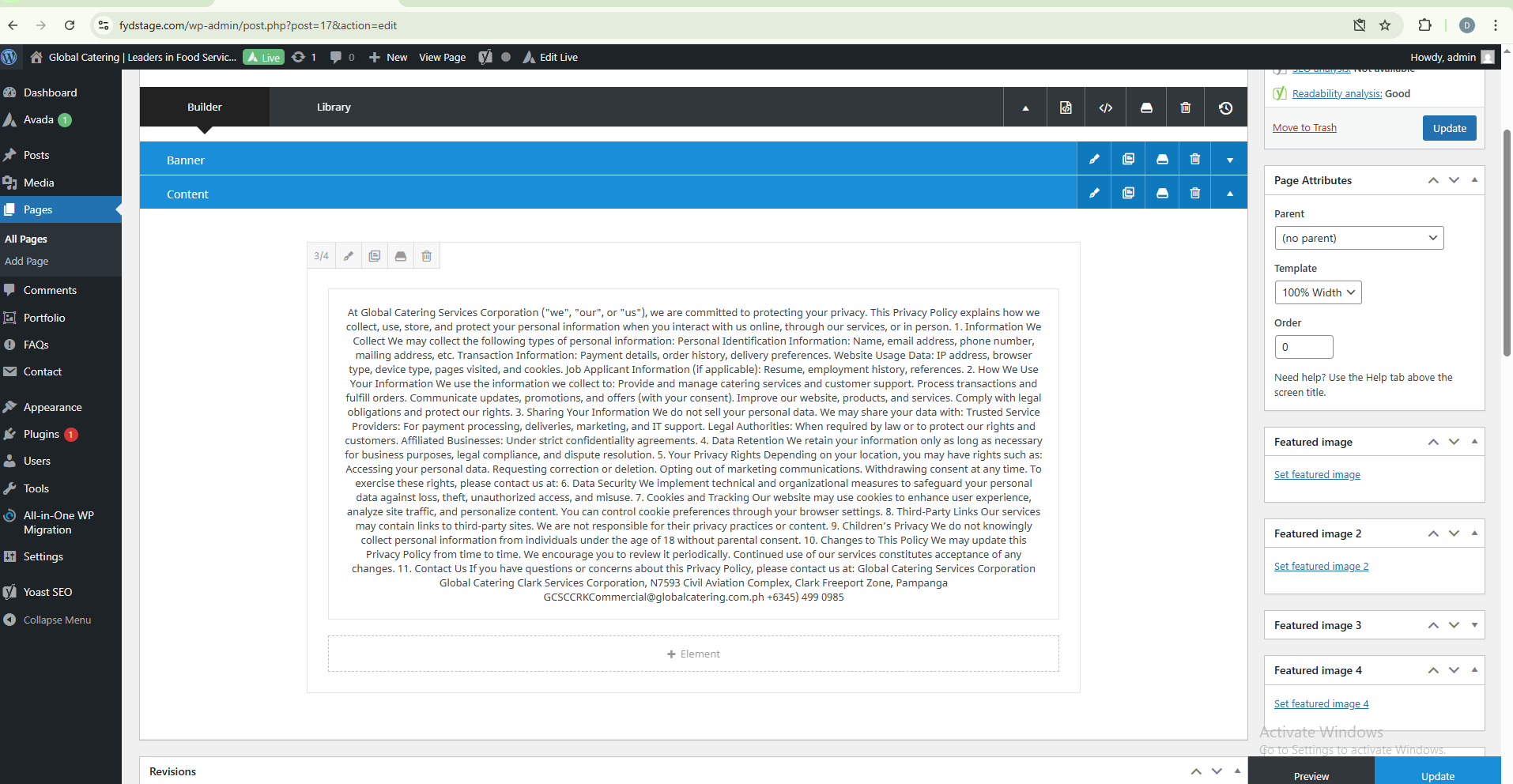
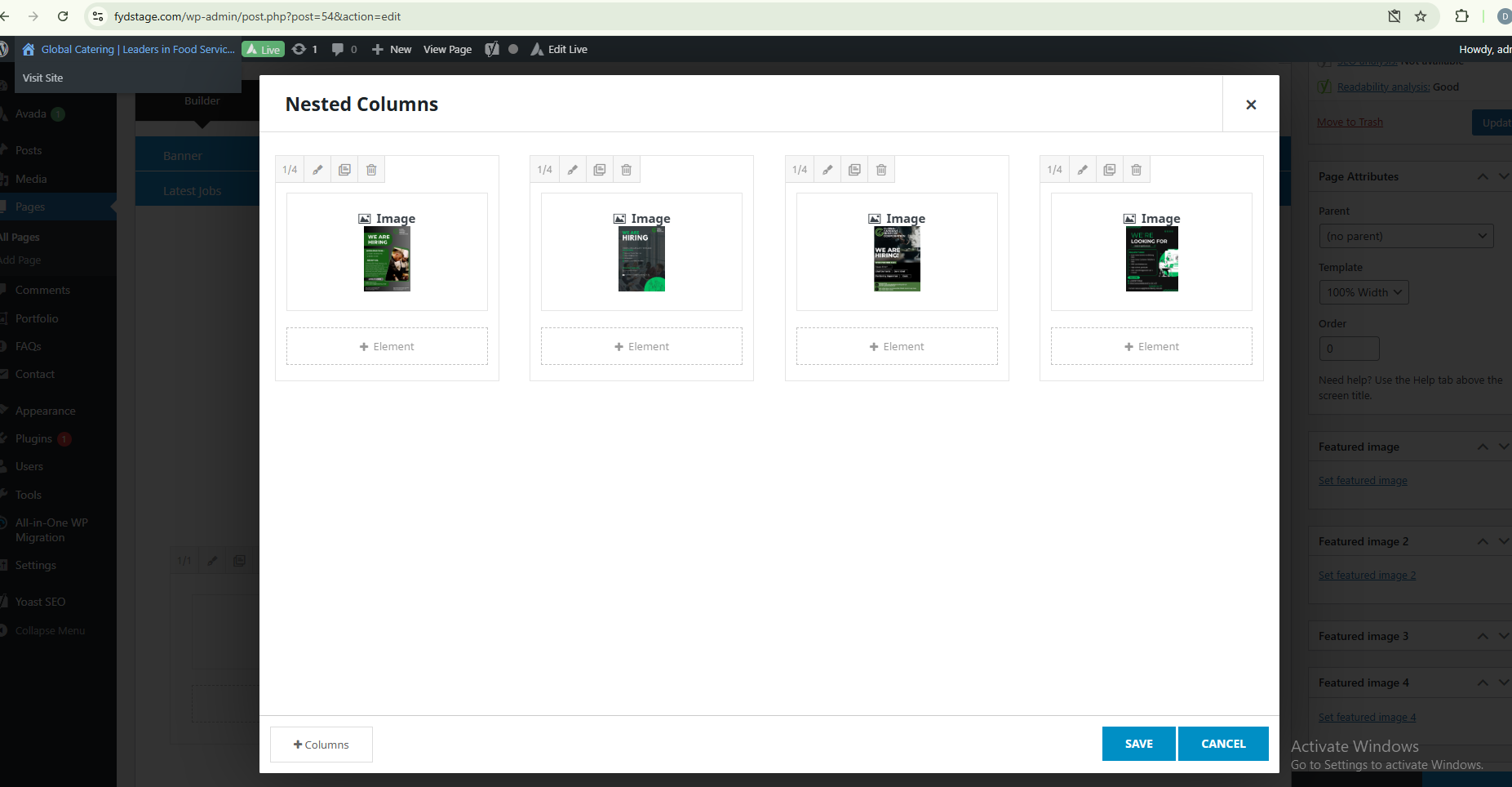
Navigate to Pages > Careers and click the triangle icon to expand the section. To edit the image or text, locate the appropriate content block. To add a new job posting, click the pencil icon on ‘Nested Columns’, clone the existing template, and replace the image as needed. After making your changes, click ‘Update’ or ‘Save’ to apply them
Contact Us Banner
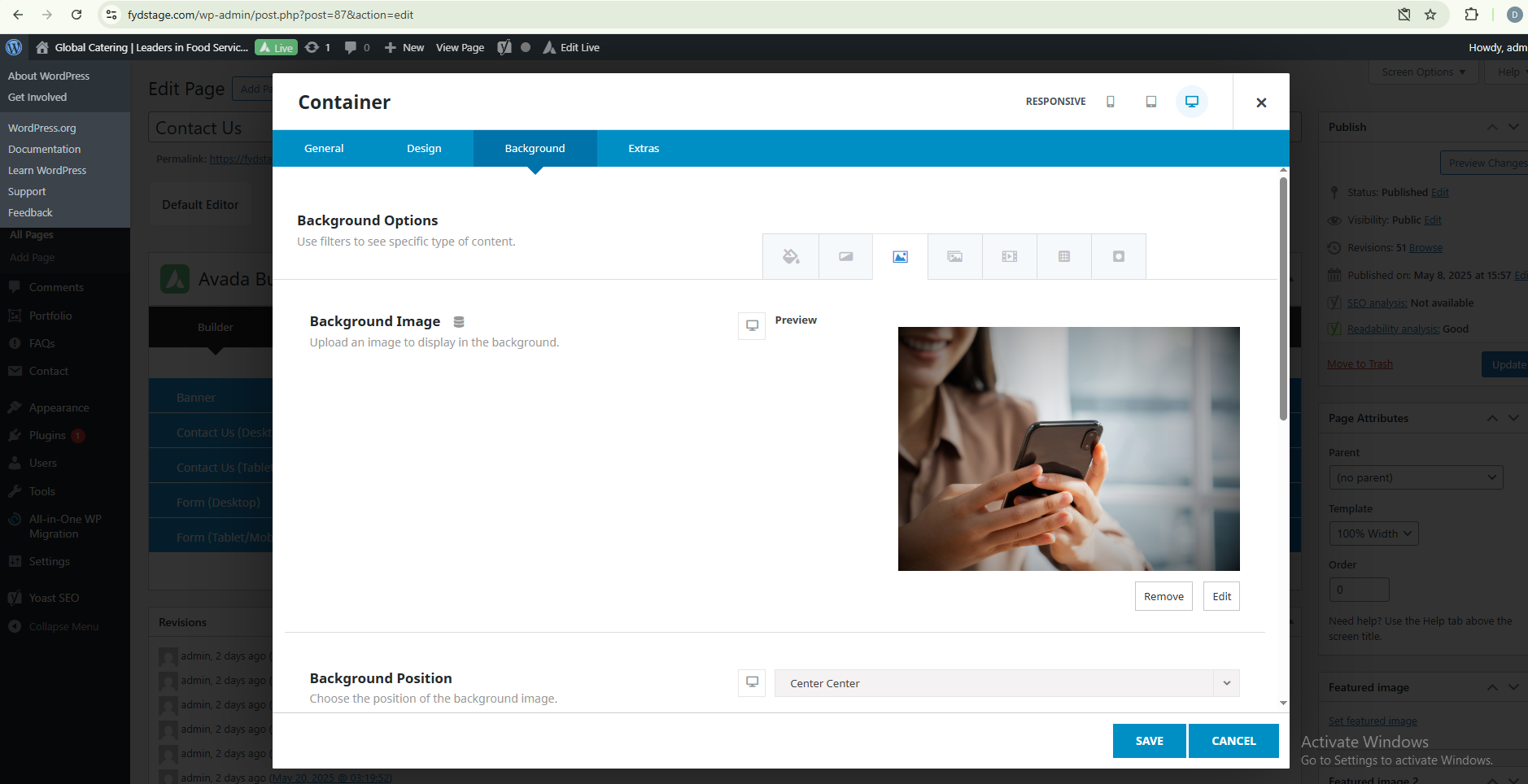
Go to Pages < Contact us < Banner click the Pencil Icon then go to Background select the image icon then upload the new banner
Privacy Policy Banner
Go to Pages < Privacy policy < Banner click the Pencil Icon then go to Background select the image icon then upload the new banner
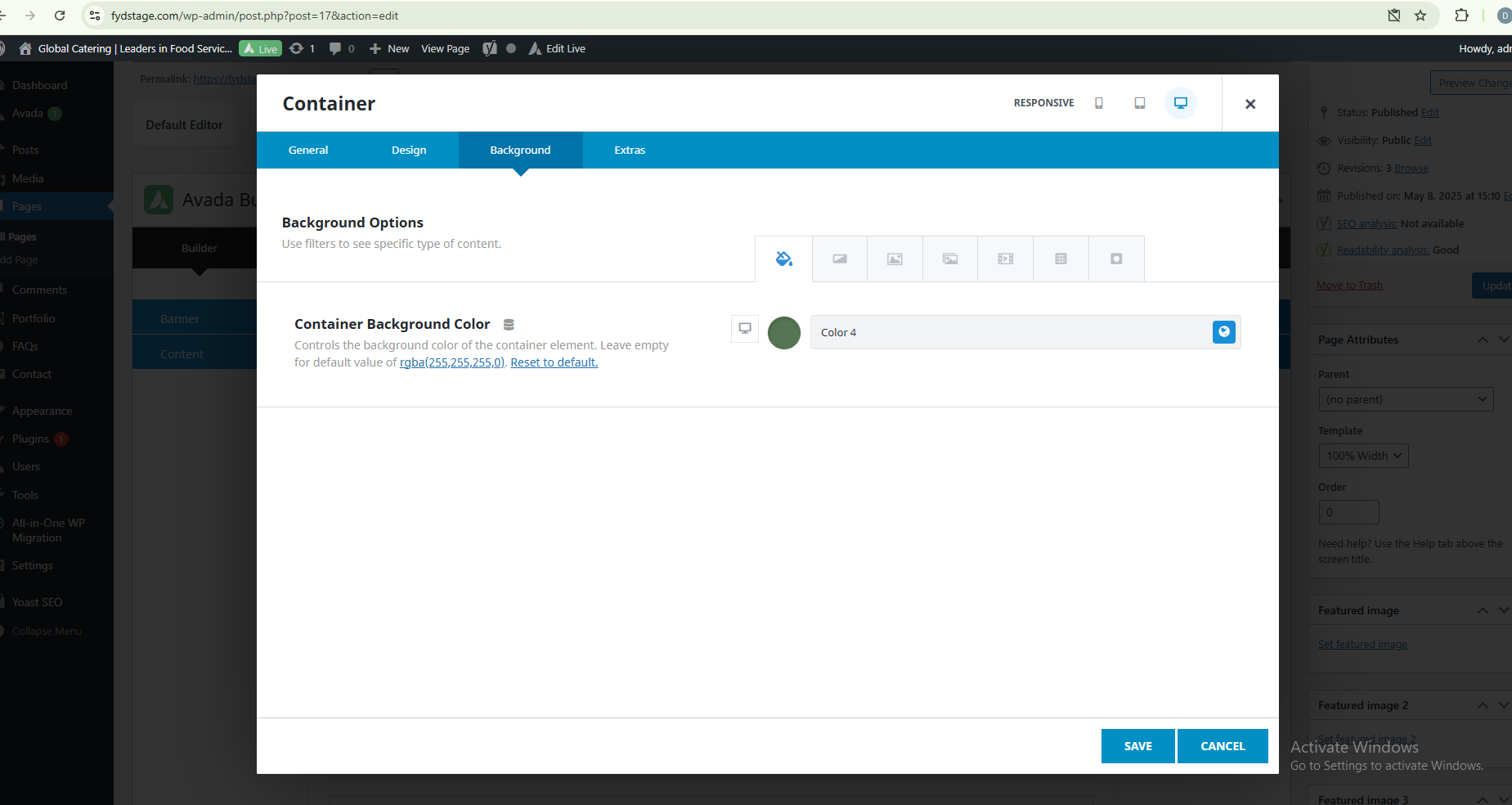
Privacy Policy Content
Go to Pages < Privacy policy < Content, click the Pencil Icon then go to Background select the image icon then upload the new banner